
Set OR logic for checkbox filters
The support doesn work on Saturdays and Sundays, so some Friday requests can be answered on Monday. If you have problems with registration ask help on contact us page pleaseIf you not got email within 24~36 business hours, firstly check your spam box, and if no any email from the support there - back to the forum and read answer here. DO NOT ANSWER ON EMAILS [noreply@pluginus.net] FROM THE FORUM!! Emails are just for your info, all answers should be published only here.
The support doesn work on Saturdays and Sundays, so some Friday requests can be answered on Monday.

Quote from Zetema on June 17, 2026, 14:46Hi, I'd like for multiple filters to display not only objects that have both characteristics, but at least one of them.
So, not AND logic, but OR logic. How can I set this in the filter widget or on the shortcode page?For example, here https://cars.wp-filter.com/
I'd like to be able to select all those with climate control and all those with ABS, not just those with both. Would that be feasible? If so, how?Thanks.
Bye
Hi, I'd like for multiple filters to display not only objects that have both characteristics, but at least one of them.
So, not AND logic, but OR logic. How can I set this in the filter widget or on the shortcode page?
For example, here https://cars.wp-filter.com/
I'd like to be able to select all those with climate control and all those with ABS, not just those with both. Would that be feasible? If so, how?
Thanks.
Bye

Quote from Ross on June 17, 2026, 22:04Hello
First of all, could you clarify: are "climate control" and "ABS" values of the same taxonomy (one filter with multiple checkboxes), or are they two separate filters/taxonomies?
If they are values of the same taxonomy, then selecting multiple checkboxes already works as OR by default — the plugin passes all selected term IDs in one terms array with the IN operator, so it returns posts that have at least one of the selected values.
If they are two different taxonomies, then OR logic between separate filters is not supported natively in the plugin at this time.
For example, here https://cars.wp-filter.com/ - here is logic AND works by default, just create filter sections and use. By the way all demo sites can be downloaded here https://wp-filter.com/demo-sites/
Hello
First of all, could you clarify: are"climate control" and"ABS" values of the same taxonomy (one filter with multiple checkboxes), or are they two separate filters/taxonomies?
If they are values of the same taxonomy, then selecting multiple checkboxes already works as OR by default — the plugin passes all selected term IDs in one terms array with the IN operator, so it returns posts that have at least one of the selected values.
If they are two different taxonomies, then OR logic between separate filters is not supported natively in the plugin at this time.
For example, here https://cars.wp-filter.com/ - here is logic AND works by default, just create filter sections and use. By the way all demo sites can be downloaded here https://wp-filter.com/demo-sites/
Quote from Zetema on June 18, 2026, 09:25Hi,
First of all, thanks for the reply.
It doesn't seem to work the way you say, or maybe I'm not understanding correctly.
Using the demo site here https://cars.wp-filter.com/
In the filter block on the right, there's "Equipment" with the various boxes.
Among the boxes, you can see the "central locking (23)" option and the "abs+esp(15)" option, so two options from the same taxonomy, correct?
If you now select "central locking," you'll only see 23 cars, okay?
If you also add "abs+esp," which is 15, you should see 38 cars (so 38 results) if it were with the OR logic. Instead, the result is 20 cars, only those with both central locking and abs+esp. You can also see this simply by the reduced pagination.
So, can I see all the results for both selections?
Thanks for your help.
Hi,
First of all, thanks for the reply.
It doesn't seem to work the way you say, or maybe I'm not understanding correctly.
Using the demo site here https://cars.wp-filter.com/
In the filter block on the right, there's"Equipment" with the various boxes.
Among the boxes, you can see the"central locking (23)" option and the"abs+esp(15)" option, so two options from the same taxonomy, correct?
If you now select"central locking," you'll only see 23 cars, okay?
If you also add"abs+esp," which is 15, you should see 38 cars (so 38 results) if it were with the OR logic. Instead, the result is 20 cars, only those with both central locking and abs+esp. You can also see this simply by the reduced pagination.
So, can I see all the results for both selections?
Thanks for your help.

Quote from Alex Dev on June 19, 2026, 14:50Hello
Sorry for the confusion in my previous answer, I need to correct myself.
In the first reply it was describing how the plugin behaves with taxonomies (categories, tags, custom taxonomy terms). When you select multiple terms of the same taxonomy, the plugin does combine them with OR logic by default, that part is correct.
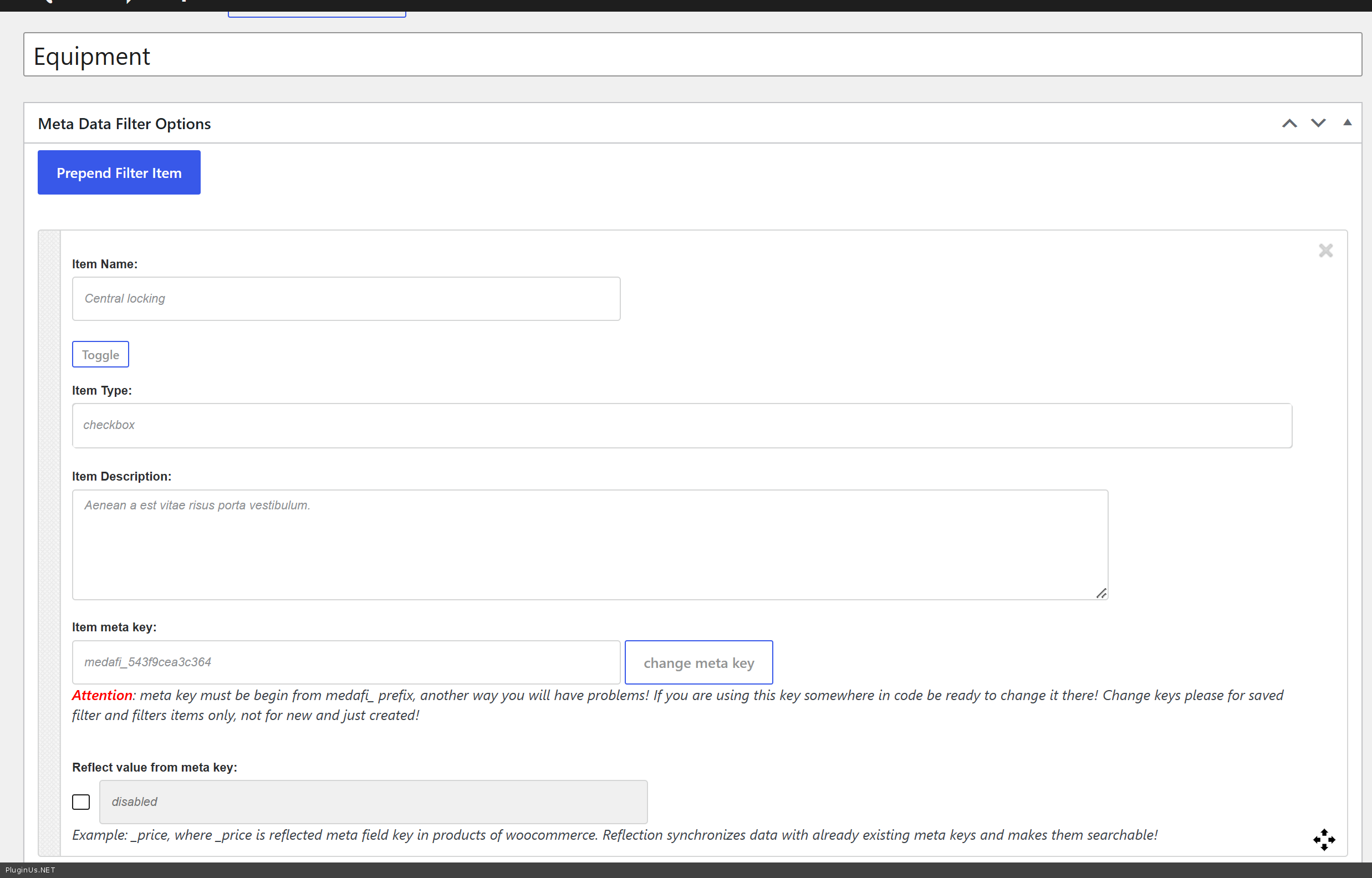
However, after looking closer at the demo site you mentioned, I see that the Equipment block (Central locking, ABS+EPS, Climatisation, etc.) is not built from a taxonomy at all. Each of these items is set up as a separate meta field, with its own individual meta key. I am attaching screenshots showing this from the filter section settings, you can see each item has its own Item Type set to checkbox and its own unique Item meta key.
This is an important difference, because meta fields work differently from taxonomies. When you select several meta field checkboxes, each one becomes its own separate condition, and by default these conditions are combined with AND logic, not OR. That is why selecting both Central locking and ABS+EPS returns only the cars that have both attributes at the same time (the intersection), instead of all cars that have either one (the union). The number you get is smaller because it only counts cars matching both conditions together.
So to summarize: taxonomies combine with OR by default, but meta fields combine with AND by default. Since your Equipment filter is built with meta fields, that is why you are seeing AND behavior there.
Let me check on our side what options exist to switch this specific filter section to OR behavior, and I will follow up with you.
Hello
Sorry for the confusion in my previous answer, I need to correct myself.
In the first reply it was describing how the plugin behaves with taxonomies (categories, tags, custom taxonomy terms). When you select multiple terms of the same taxonomy, the plugin does combine them with OR logic by default, that part is correct.
However, after looking closer at the demo site you mentioned, I see that the Equipment block (Central locking, ABS+EPS, Climatisation, etc.) is not built from a taxonomy at all. Each of these items is set up as a separate meta field, with its own individual meta key. I am attaching screenshots showing this from the filter section settings, you can see each item has its own Item Type set to checkbox and its own unique Item meta key.
This is an important difference, because meta fields work differently from taxonomies. When you select several meta field checkboxes, each one becomes its own separate condition, and by default these conditions are combined with AND logic, not OR. That is why selecting both Central locking and ABS+EPS returns only the cars that have both attributes at the same time (the intersection), instead of all cars that have either one (the union). The number you get is smaller because it only counts cars matching both conditions together.
So to summarize: taxonomies combine with OR by default, but meta fields combine with AND by default. Since your Equipment filter is built with meta fields, that is why you are seeing AND behavior there.
Let me check on our side what options exist to switch this specific filter section to OR behavior, and I will follow up with you.
Quote from Zetema on June 23, 2026, 08:59Thank you for the clarification. It would be very helpful to have a way to filter metadata with or. We're waiting for a possible solution. Thanks for the reply and congratulations on the entire plugin.
Thank you for the clarification. It would be very helpful to have a way to filter metadata with or. We're waiting for a possible solution. Thanks for the reply and congratulations on the entire plugin.
Quote from Alex Dev on June 24, 2026, 12:02Hello
I can confirm there is a way to get OR logic for this filter form, and we want to set it up in a way that will keep working even after future plugin updates.
Open the file located at: wp-content/plugins/meta-data-filter/views/shortcode/do_mdf_search_form.php
Find these two lines near the top of the file:
$meta_data_filter_bool = 'AND';
$mdf_tax_bool = 'AND';Replace them with:
$meta_data_filter_bool = apply_filters('mdf_meta_data_filter_bool', 'AND', $shortcode_id);
$mdf_tax_bool = apply_filters('mdf_tax_bool', 'AND', $shortcode_id);Save the file. By itself this does not change anything yet, the default is still AND.
Now, in your theme's functions.php (or a code snippets plugin), add:
add_filter('mdf_meta_data_filter_bool', function($bool, $shortcode_id) {
    if ($shortcode_id == 179) {
        return 'OR';
    }
    return $bool;
}, 10, 2);
This will switch the Equipment filter section to OR logic, so selecting Central locking and ABS+EPS will show cars that have either one, not only cars that have both. Since the condition checks the shortcode id, other filter forms on your site will keep working with AND as before.
The advantage of doing it this way is that we are adding this exact same hook to the plugin core in an upcoming update. Once you update the plugin, the file will already contain these apply_filters lines, your functions.php code will keep working without any changes, and you will not need to touch plugin files again after that.
Try it ...
You are Welcome!
Hello
I can confirm there is a way to get OR logic for this filter form, and we want to set it up in a way that will keep working even after future plugin updates.
Open the file located at: wp-content/plugins/meta-data-filter/views/shortcode/do_mdf_search_form.php
Find these two lines near the top of the file:
$meta_data_filter_bool = 'AND';
$mdf_tax_bool = 'AND';
Replace them with:
$meta_data_filter_bool = apply_filters('mdf_meta_data_filter_bool', 'AND', $shortcode_id);
$mdf_tax_bool = apply_filters('mdf_tax_bool', 'AND', $shortcode_id);
Save the file. By itself this does not change anything yet, the default is still AND.
Now, in your theme's functions.php (or a code snippets plugin), add:
add_filter('mdf_meta_data_filter_bool', function($bool, $shortcode_id) {
    if ($shortcode_id == 179) {
        return 'OR';
    }
    return $bool;
}, 10, 2);
This will switch the Equipment filter section to OR logic, so selecting Central locking and ABS+EPS will show cars that have either one, not only cars that have both. Since the condition checks the shortcode id, other filter forms on your site will keep working with AND as before.
The advantage of doing it this way is that we are adding this exact same hook to the plugin core in an upcoming update. Once you update the plugin, the file will already contain these apply_filters lines, your functions.php code will keep working without any changes, and you will not need to touch plugin files again after that.
Try it ...
You are Welcome!
Quote from Zetema on June 25, 2026, 15:48Hi, thanks for the reply.
It's great for applying to my site, but I imagine I need to replace the shortcode ID.
What should I enter as the ID I see in the "Filter Section"? Or do I need to do another step?
Sorry, but to speed things up, I used the demo site example, but I don't use that.
Thanks again for the support.
Hi, thanks for the reply.
It's great for applying to my site, but I imagine I need to replace the shortcode ID.
What should I enter as the ID I see in the"Filter Section"? Or do I need to do another step?
Sorry, but to speed things up, I used the demo site example, but I don't use that.
Thanks again for the support.
Quote from Alex Dev on June 26, 2026, 15:17Hello
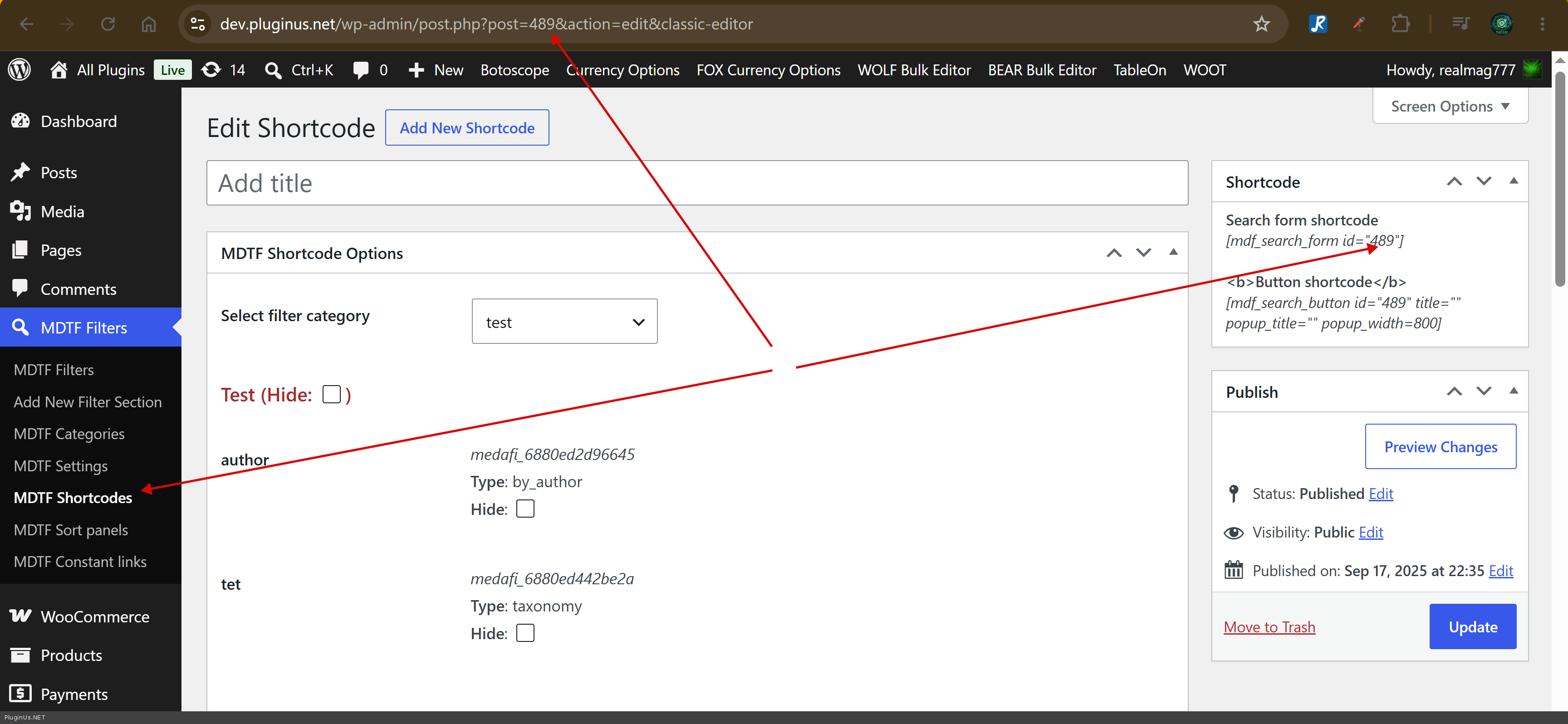
Looks like you mean shortcode ID:
- go here wp-admin/edit.php?post_type=mdf_shortcodes
- create shortcode or enter it
- you will see in browser input its ID, example: wp-admin/post.php?post=489&action=edit&classic-editor
- also you can see it in the right sidebar
Welcome!
Hello
Looks like you mean shortcode ID:
- go here wp-admin/edit.php?post_type=mdf_shortcodes
- create shortcode or enter it
- you will see in browser input its ID, example: wp-admin/post.php?post=489&action=edit&classic-editor
- also you can see it in the right sidebar
Welcome!
Quote from Zetema on October 5, 2026, 15:24Hi. Actually, I use the widget in the right sidebar, and I would like all the filters to follow this logic.
Meanwhile, on the results page, I use this shortcode:
How should I go about applying the AND logic in my case?[mdf_results_by_ajax shortcode="mdf_custom template=any/scuole_Rox24 post_type=schedadidattica orderby=date order=desc page=0 per_page=12 pagination=tb meta_data_filter_cat=90" animate=0 animate_target=body]
Thanks for the support and patience.
Hi. Actually, I use the widget in the right sidebar, and I would like all the filters to follow this logic.
Meanwhile, on the results page, I use this shortcode:
How should I go about applying the AND logic in my case?
[mdf_results_by_ajax shortcode="mdf_custom template=any/scuole_Rox24 post_type=schedadidattica orderby=date order=desc page=0 per_page=12 pagination=tb meta_data_filter_cat=90" animate=0 animate_target=body]
Thanks for the support and patience.
Quote from Alex Dev on October 7, 2026, 21:47Hello
Thank you for your patience. We have prepared a new version of the plugin, 2.4.0, and tested it carefully, including a setup like yours: the sidebar widget plus the [mdf_results_by_ajax] shortcode with a custom template.
What we changed:
1. OR logic for meta field checkboxes now works correctly in the widget, in the search results, in the ajax results, with pagination and sorting, and in the item counters. Before, the OR setting was not passed to the search results at all, so it always worked as AND.
2. The widget settings now show the option "AND/OR behaviour for meta fields", so no code snippet is needed. The snippet from my previous reply is not needed anymore, please do not add it.
3. Custom result templates in sub folders, like your template=any/scuole_Rox24, are loaded correctly.
4. Compatibility with PHP 7.4 to 8.5 and the latest WordPress, several security fixes, and a refreshed admin area.You can download it in private area of this ticket:
https://share.pluginus.net/image/i20230222134241.png
https://share.pluginus.net/image/i20230222134615.pngHow to install:
1. Make a backup of your site, as with any update.
2. Go to Plugins > Add New > Upload Plugin, choose meta-data-filter.zip and confirm "Replace current with uploaded". Your filters, widgets and settings are kept.
3. Open Appearance > Widgets, find your MDTF widget, set "AND/OR behaviour for meta fields" to OR and save the widget.
4. If "Cache dynamic recount" is enabled in the MDTF settings, clear that cache. If you use a page cache plugin, clear it too.How OR works now: checked checkboxes are combined, so a result is shown if it has at least one of the checked items. Range sliders, drop-downs and text fields still narrow the results, they work the same as before. The number next to each checkbox shows how many results you will get if you check it too, so in OR mode these numbers grow when you add items, instead of going down as in AND mode.
Your results shortcode does not need any changes.
Please try it and let me know how it works on your site.
You are Welcome!
Alex
Hello
Thank you for your patience. We have prepared a new version of the plugin, 2.4.0, and tested it carefully, including a setup like yours: the sidebar widget plus the [mdf_results_by_ajax] shortcode with a custom template.
What we changed:
1. OR logic for meta field checkboxes now works correctly in the widget, in the search results, in the ajax results, with pagination and sorting, and in the item counters. Before, the OR setting was not passed to the search results at all, so it always worked as AND.
2. The widget settings now show the option"AND/OR behaviour for meta fields", so no code snippet is needed. The snippet from my previous reply is not needed anymore, please do not add it.
3. Custom result templates in sub folders, like your template=any/scuole_Rox24, are loaded correctly.
4. Compatibility with PHP 7.4 to 8.5 and the latest WordPress, several security fixes, and a refreshed admin area.
You can download it in private area of this ticket:
https://share.pluginus.net/image/i20230222134241.png
https://share.pluginus.net/image/i20230222134615.png


How to install:
1. Make a backup of your site, as with any update.
2. Go to Plugins > Add New > Upload Plugin, choose meta-data-filter.zip and confirm"Replace current with uploaded". Your filters, widgets and settings are kept.
3. Open Appearance > Widgets, find your MDTF widget, set"AND/OR behaviour for meta fields" to OR and save the widget.
4. If"Cache dynamic recount" is enabled in the MDTF settings, clear that cache. If you use a page cache plugin, clear it too.
How OR works now: checked checkboxes are combined, so a result is shown if it has at least one of the checked items. Range sliders, drop-downs and text fields still narrow the results, they work the same as before. The number next to each checkbox shows how many results you will get if you check it too, so in OR mode these numbers grow when you add items, instead of going down as in AND mode.
Your results shortcode does not need any changes.
Please try it and let me know how it works on your site.
You are Welcome!
Alex
Quote from Zetema on October 9, 2026, 09:39Hi Alex, that’s fantastic!
We’ll look forward to the updated version, then; in the meantime, I’ll write up this version. Thanks again, and congratulations to the whole team.
Hi Alex, that’s fantastic!
We’ll look forward to the updated version, then; in the meantime, I’ll write up this version. Thanks again, and congratulations to the whole team.
Quote from Alex Dev on October 9, 2026, 15:04Hello
Thank you for the kind words, I will pass them on to the team!
Good news: version 2.4.0/1.4.0 was released publicly about two hours ago, so you can simply update the plugin as usual from your dashboard. No need to install anything by hand.
After updating, open Appearance > Widgets, set "AND/OR behaviour for meta fields" to OR in your MDTF widget and save it. If "Cache dynamic recount" is enabled, clear that cache, and clear your page cache too if you use one.
Please let me know if everything works as expected on your site.
You are Welcome!
Alex
Hello
Thank you for the kind words, I will pass them on to the team!
Good news: version 2.4.0/1.4.0 was released publicly about two hours ago, so you can simply update the plugin as usual from your dashboard. No need to install anything by hand.
After updating, open Appearance > Widgets, set"AND/OR behaviour for meta fields" to OR in your MDTF widget and save it. If"Cache dynamic recount" is enabled, clear that cache, and clear your page cache too if you use one.
Please let me know if everything works as expected on your site.
You are Welcome!
Alex