
Filter results in a 404 when selected
The support doesn work on Saturdays and Sundays, so some Friday requests can be answered on Monday. If you have problems with registration ask help on contact us page pleaseIf you not got email within 24~36 business hours, firstly check your spam box, and if no any email from the support there - back to the forum and read answer here. DO NOT ANSWER ON EMAILS [noreply@pluginus.net] FROM THE FORUM!! Emails are just for your info, all answers should be published only here.
The support doesn work on Saturdays and Sundays, so some Friday requests can be answered on Monday.

Quote from ChristianBS on November 13, 2026, 15:06After activating the premium plugin, the filter no longer works. No matter what I select, I get a 404 page.
After selecting a color, the page loads and the URL expands: /swoof1/color-black/
Shortcode:
[woof_front_builder name=”My filter form” popup_width=800 popup_height=600]
I also tested it with [woof].
Information:
- HUSKY plugin version is 3.4.7
- "Divi5 Builder/Theme"
- Shortcode is set in the "Theme Builder" for all product categories
After activating the premium plugin, the filter no longer works. No matter what I select, I get a 404 page.
After selecting a color, the page loads and the URL expands: /swoof1/color-black/
Shortcode:
[woof_front_builder name=”My filter form” popup_width=800 popup_height=600]
I also tested it with [woof].
Information:
- HUSKY plugin version is 3.4.7
-"Divi5 Builder/Theme"
- Shortcode is set in the"Theme Builder" for all product categories

Quote from Alex Dev on November 16, 2026, 13:39Hello Christian
The swoof1 part of the URL is correct: the [woof_front_builder] form adds its own id to the search slug, so form 1 uses swoof1. With the SEO URL option on, HUSKY reads that slug and the filter values from the URL itself, and then resolves the rest of the address through the WordPress rewrite rules. So a 404 here means something else on the site also handles the URL before or after HUSKY, or the rewrite rules are stale.
Please check these points:
1. Update HUSKY to the latest version 3.4.8.
2. Make sure the free HUSKY version is deactivated and deleted, only the premium one should be active.
3. Go to Settings > Permalinks and click Save Changes without changing anything, to rebuild the rewrite rules.
4. Clear all caches (caching plugin, server cache, CDN), because a 404 page can stay cached.
5. Check whether you have any plugin that changes permalinks, for example one that removes product-category from the URL or rewrites product and category links. Such plugins and multilingual URL prefixes can conflict with filter URLs.
If the 404 is still there, please do one clean test on a staging copy of the site:
1. Switch the theme to Storefront. Divi Theme Builder templates can have their own URL handling, so this shows whether the theme is involved.
2. Deactivate all plugins except WooCommerce and HUSKY.
3. Put the same shortcode on the shop page or in a sidebar widget, select a color and check the result.If the filter works there, the cause is the theme or one of the deactivated plugins. Re-enable them one by one until the 404 comes back and you will find the culprit. If it still fails with only WooCommerce and HUSKY on Storefront, please put the staging admin access into the private data of this topic and I will check it directly.
For futher support place please actual purchase code of the plugin into the private area of the ticket:
https://share.pluginus.net/image/i20230222134241.png
https://share.pluginus.net/image/i20230222134615.png
https://share.pluginus.net/image/i20230222134511.pngBest regards, Alex
Hello Christian
The swoof1 part of the URL is correct: the [woof_front_builder] form adds its own id to the search slug, so form 1 uses swoof1. With the SEO URL option on, HUSKY reads that slug and the filter values from the URL itself, and then resolves the rest of the address through the WordPress rewrite rules. So a 404 here means something else on the site also handles the URL before or after HUSKY, or the rewrite rules are stale.
Please check these points:
1. Update HUSKY to the latest version 3.4.8.
2. Make sure the free HUSKY version is deactivated and deleted, only the premium one should be active.
3. Go to Settings > Permalinks and click Save Changes without changing anything, to rebuild the rewrite rules.
4. Clear all caches (caching plugin, server cache, CDN), because a 404 page can stay cached.
5. Check whether you have any plugin that changes permalinks, for example one that removes product-category from the URL or rewrites product and category links. Such plugins and multilingual URL prefixes can conflict with filter URLs.
If the 404 is still there, please do one clean test on a staging copy of the site:
1. Switch the theme to Storefront. Divi Theme Builder templates can have their own URL handling, so this shows whether the theme is involved.
2. Deactivate all plugins except WooCommerce and HUSKY.
3. Put the same shortcode on the shop page or in a sidebar widget, select a color and check the result.
If the filter works there, the cause is the theme or one of the deactivated plugins. Re-enable them one by one until the 404 comes back and you will find the culprit. If it still fails with only WooCommerce and HUSKY on Storefront, please put the staging admin access into the private data of this topic and I will check it directly.
For futher support place please actual purchase code of the plugin into the private area of the ticket:
https://share.pluginus.net/image/i20230222134241.png
https://share.pluginus.net/image/i20230222134615.png
https://share.pluginus.net/image/i20230222134511.png


Best regards, Alex
Quote from ChristianBS on November 16, 2026, 17:39It works with the Storefront theme.
It also worked with the Divi theme initially, but not anymore. At least it works in the free version. Is it possible to reset the plugin settings to factory defaults?
I also don't understand why, if SEO is disabled and only parameters are appended to the URL, it still redirects to this page. The user should normally stay on the current page, but the redirection results in a 404 error.
It works with the Storefront theme.
It also worked with the Divi theme initially, but not anymore. At least it works in the free version. Is it possible to reset the plugin settings to factory defaults?
I also don't understand why, if SEO is disabled and only parameters are appended to the URL, it still redirects to this page. The user should normally stay on the current page, but the redirection results in a 404 error.
Quote from ChristianBS on November 17, 2026, 17:26Would it perhaps make more sense for you to log in to our development environment as an admin?
Would it perhaps make more sense for you to log in to our development environment as an admin?
Quote from Alex Dev on November 18, 2026, 14:44Hello Christian
Thank you for testing with Storefront. That tells us the cause is in how the filter works together with Divi, not in the filter itself.
The settings are probably not the cause. The free and premium versions use the same settings in the database, and you said it works in the free version. So there is no need to reset them.
We would like to check this directly on your site. Please create a development copy of your site with the same Divi setup, where we can test freely.
Then please add to the private section of this ticket (not to the public part of the forum, which everyone can read):
1. The link to the development site and admin access to it.
2. The correct license key of your purchase. What you added there now is not a license key. You can find the key in the email you received after the purchase.Before that, you can do a quick check yourself. Open a product category page where the filter is placed, open the browser console (F12 > Console), type woof_current_page_link and press Enter. If it shows the shop page address instead of the address of the category you are on, the filter is sending visitors to the shop page, and that is where the 404 comes from. Divi Theme Builder can replace the page query, so the filter no longer sees that it is on a category page.
In that case you can try the code below on the development site. Save it as a file, for example husky-divi-fix.php, in the folder wp-content/mu-plugins/ (create the folder if it does not exist). It makes the filter always use the address of the current category page. Please let us know whether it helps.
Best regards, Alex
<?php
/*
 * Plugin Name: HUSKY - current page link fix for Divi Theme Builder
 * Description: Keeps the filter on the current product category/tag/attribute page.
 */

add_action( 'wp_footer', function () {
	// The main query is never replaced by theme builder loops, unlike the global $wp_query
	global $wp_the_query;
	if ( ! $wp_the_query instanceof WP_Query || ! $wp_the_query->is_tax() ) {
		return;
	}

	$term = $wp_the_query->get_queried_object();
	if ( ! $term instanceof WP_Term || ! in_array( $term->taxonomy, get_object_taxonomies( 'product' ), true ) ) {
		return;
	}

	$link = get_term_link( $term );
	if ( is_wp_error( $link ) ) {
		return;
	}

	// Runs after the filter scripts are printed and overrides the base link of the filter
	echo '<script>if (typeof woof_current_page_link !== "undefined") { woof_current_page_link = ' . wp_json_encode( $link ) . '; }</script>';
}, 100 );
Hello Christian
Thank you for testing with Storefront. That tells us the cause is in how the filter works together with Divi, not in the filter itself.
The settings are probably not the cause. The free and premium versions use the same settings in the database, and you said it works in the free version. So there is no need to reset them.
We would like to check this directly on your site. Please create a development copy of your site with the same Divi setup, where we can test freely.
Then please add to the private section of this ticket (not to the public part of the forum, which everyone can read):
1. The link to the development site and admin access to it.
2. The correct license key of your purchase. What you added there now is not a license key. You can find the key in the email you received after the purchase.
Before that, you can do a quick check yourself. Open a product category page where the filter is placed, open the browser console (F12 > Console), type woof_current_page_link and press Enter. If it shows the shop page address instead of the address of the category you are on, the filter is sending visitors to the shop page, and that is where the 404 comes from. Divi Theme Builder can replace the page query, so the filter no longer sees that it is on a category page.
In that case you can try the code below on the development site. Save it as a file, for example husky-divi-fix.php, in the folder wp-content/mu-plugins/ (create the folder if it does not exist). It makes the filter always use the address of the current category page. Please let us know whether it helps.
Best regards, Alex
<?php
/*
 * Plugin Name: HUSKY - current page link fix for Divi Theme Builder
 * Description: Keeps the filter on the current product category/tag/attribute page.
 */

add_action( 'wp_footer', function () {
	// The main query is never replaced by theme builder loops, unlike the global $wp_query
	global $wp_the_query;
	if ( ! $wp_the_query instanceof WP_Query || ! $wp_the_query->is_tax() ) {
		return;
	}

	$term = $wp_the_query->get_queried_object();
	if ( ! $term instanceof WP_Term || ! in_array( $term->taxonomy, get_object_taxonomies( 'product' ), true ) ) {
		return;
	}

	$link = get_term_link( $term );
	if ( is_wp_error( $link ) ) {
		return;
	}

	// Runs after the filter scripts are printed and overrides the base link of the filter
	echo '<script>if (typeof woof_current_page_link !=="undefined") { woof_current_page_link = ' . wp_json_encode( $link ) . '; }</script>';
}, 100 );
Quote from ChristianBS on November 18, 2026, 18:00License key and login details have been added.
Is there a way to shorten the steps (text below the slider) in the range slider (smallest and largest values), other than using CSS `display none`?
husky-divi-fix.php has been created and is located in "/wp-content/mu-plugins/".
License key and login details have been added.
Is there a way to shorten the steps (text below the slider) in the range slider (smallest and largest values), other than using CSS `display none`?
husky-divi-fix.php has been created and is located in"/wp-content/mu-plugins/".
Quote from Alex Dev on November 19, 2026, 17:11Hello Christian
Thank you for the access, we found the cause and fixed it on your development site.
The filter link itself was correct. The problem is in how the filter and Divi Theme Builder work together. When a search starts, HUSKY by default switches the page query to the product archive (the shop page) so that themes show the filtered products. For WordPress the page then stops being a product category page. Your Divi Theme Builder template is assigned to all product categories, and there is no template for the shop archive, so Divi showed its 404 layout instead. The server actually answered normally, only the page template was the wrong one.
What we changed: in the filter settings, Advanced tab, Options, we set "Disable swoof influence" to Yes. Now the filter no longer changes the page query, the category page stays a category page, and your Divi template is used for the filtered results too. Please see the screenshot.
Two more things:
- Please delete the file husky-divi-fix.php from wp-content/mu-plugins/. It is not needed, the filter already used the correct page address.
- In your shortcode the quotation marks are typographic (curly) quotes. Because of that the attributes are not read correctly. Please retype them as straight quotes:
[woof_front_builder name="My filter form" popup_width=800 popup_height=600]About the labels below the range slider: open the settings of that filter element (Produkt Durchmesser) and use the "Grid step" option. -1 hides all labels, 1 shows all of them, 2 shows every second label, 3 every third, and so on.
Best regards, Alex
Hello Christian
Thank you for the access, we found the cause and fixed it on your development site.
The filter link itself was correct. The problem is in how the filter and Divi Theme Builder work together. When a search starts, HUSKY by default switches the page query to the product archive (the shop page) so that themes show the filtered products. For WordPress the page then stops being a product category page. Your Divi Theme Builder template is assigned to all product categories, and there is no template for the shop archive, so Divi showed its 404 layout instead. The server actually answered normally, only the page template was the wrong one.
What we changed: in the filter settings, Advanced tab, Options, we set"Disable swoof influence" to Yes. Now the filter no longer changes the page query, the category page stays a category page, and your Divi template is used for the filtered results too. Please see the screenshot.
Two more things:
- Please delete the file husky-divi-fix.php from wp-content/mu-plugins/. It is not needed, the filter already used the correct page address.
- In your shortcode the quotation marks are typographic (curly) quotes. Because of that the attributes are not read correctly. Please retype them as straight quotes:
[woof_front_builder name="My filter form" popup_width=800 popup_height=600]
About the labels below the range slider: open the settings of that filter element (Produkt Durchmesser) and use the"Grid step" option. -1 hides all labels, 1 shows all of them, 2 shows every second label, 3 every third, and so on.
Best regards, Alex
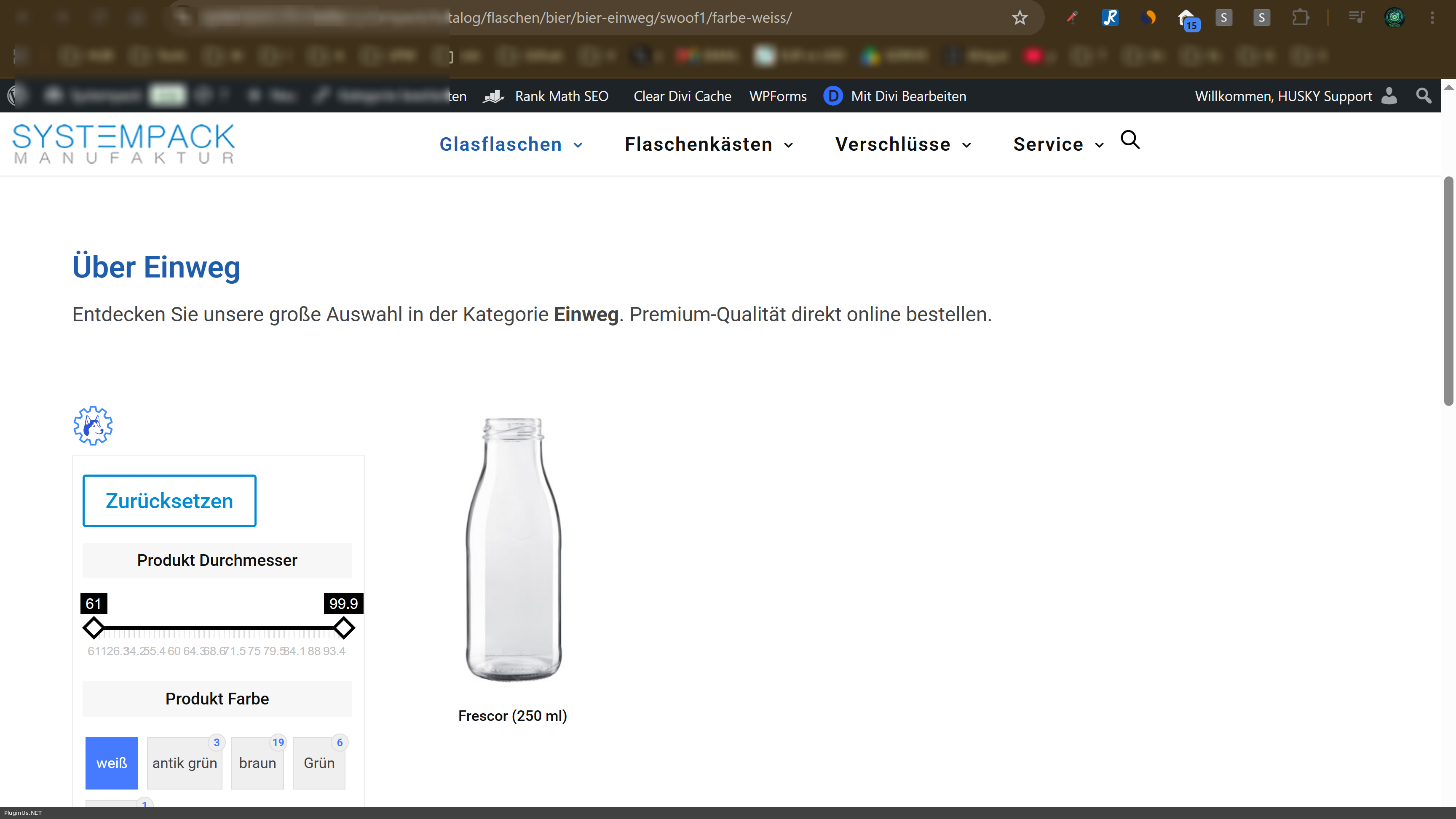
Quote from ChristianBS on November 20, 2026, 18:08Okay, thank you very much for your efforts.
But it's still not quite working properly.
I've attached a screenshot in the private area (screen-for-husky-support-001.png).
1. Problem
The screenshot shows two products with 750ml and 330ml contents.However, only the 750ml product is listed in the filter; the 330ml product is missing.
2. Problem
Whenever I make a selection in the lower range slider, regardless of when (unused filter, newly loaded page, or, for example, after selecting a color), no products are found (No products were found matching your selection).Further question
How can I customize the colors of the range slider? It was pink by default, which we overwrote with CSS. Is there a better way to do this?
Okay, thank you very much for your efforts.
But it's still not quite working properly.
I've attached a screenshot in the private area (screen-for-husky-support-001.png).
1. Problem
The screenshot shows two products with 750ml and 330ml contents.
However, only the 750ml product is listed in the filter; the 330ml product is missing.
2. Problem
Whenever I make a selection in the lower range slider, regardless of when (unused filter, newly loaded page, or, for example, after selecting a color), no products are found (No products were found matching your selection).
Further question
How can I customize the colors of the range slider? It was pink by default, which we overwrote with CSS. Is there a better way to do this?
Quote from Alex Dev on November 23, 2026, 14:25Hello Christian
Thank you for the access. I checked all three points on your development site. In both problems the filter works correctly, the cause is in the product data.
1. 330 is missing in "Produkt Inhalt"
The attribute Inhalt has six terms with the same slug 330. Your products (53 of them) are assigned only to the term with ID 1953. The other five, IDs 2107, 2081, 2094, 1849 and 2119, have no products at all. This probably happened during a product import, because WordPress itself does not allow two terms with the same slug.
When the filter searches by the slug 330, WordPress takes only one term for an attribute slug, and it picks one of the empty duplicates. So the search returns 0 products, and the filter hides the value 330 as empty. You can see it on the Bier Einweg page: there are 13 products with 330 ml, but the search for 330 finds nothing, while 250, 500 and 750 work fine.
How to fix: go to Products > Attributes > Inhalt > Configure terms, search for 330 and delete the five terms with count 0. Keep the term with 53 products. After that 330 will appear in the filter.
2. The lower range slider always shows "No products were found"
This slider is built on the attribute Flaschenhöhe. In your shop this attribute is filled only for 14 crates (for example "24 x 330 ml Pinolen"). None of the 31 bottles in Bier Einweg has it, because the height of the bottles is stored in another attribute, Höhe. So any range you select on this slider finds nothing in that category.
How to fix: in your filter form use the attribute Höhe instead of Flaschenhöhe for the bottle categories. Before that, please check the Höhe values. Some of them look like the decimal separator was lost during import, for example 1982, 1645, 2265, 2269, 22480, 26550, 22650 (products 21281, 21226, 21217, 21214, 21012, 21009, 21006). On a range slider such values will make the range wrong.
3. The colour of the range slider
The pink colour comes from the slider skin "Sharp", selected in HUSKY settings > Design > "Range-slider skin". You can choose another skin there (Round is blue, Square is black, Modern is green), but there is no option for a custom colour.
Your current CSS in the Divi Theme Builder code module works, but only inside that template. A better place is HUSKY settings > Advanced > Code > "Custom CSS code". The filter loads this CSS together with its own styles on every page where the filter is shown. This is the same colours as you use now, for the Sharp skin:
.irs--sharp .irs-bar,
.irs--sharp .irs-handle,
.irs--sharp .irs-from,
.irs--sharp .irs-to,
.irs--sharp .irs-single {
    background-color: #1f5cab;
}
.irs--sharp .irs-handle > i:first-child,
.irs--sharp .irs-from:before,
.irs--sharp .irs-to:before,
.irs--sharp .irs-single:before {
    border-top-color: #1f5cab;
}
.irs--sharp .irs-min,
.irs--sharp .irs-max {
    color: #333333;
    background-color: #cccccc;
}
After you add it there, you can remove the slider CSS from the Divi code module.
Best regards, Alex
Hello Christian
Thank you for the access. I checked all three points on your development site. In both problems the filter works correctly, the cause is in the product data.
1. 330 is missing in"Produkt Inhalt"
The attribute Inhalt has six terms with the same slug 330. Your products (53 of them) are assigned only to the term with ID 1953. The other five, IDs 2107, 2081, 2094, 1849 and 2119, have no products at all. This probably happened during a product import, because WordPress itself does not allow two terms with the same slug.
When the filter searches by the slug 330, WordPress takes only one term for an attribute slug, and it picks one of the empty duplicates. So the search returns 0 products, and the filter hides the value 330 as empty. You can see it on the Bier Einweg page: there are 13 products with 330 ml, but the search for 330 finds nothing, while 250, 500 and 750 work fine.
How to fix: go to Products > Attributes > Inhalt > Configure terms, search for 330 and delete the five terms with count 0. Keep the term with 53 products. After that 330 will appear in the filter.
2. The lower range slider always shows"No products were found"
This slider is built on the attribute Flaschenhöhe. In your shop this attribute is filled only for 14 crates (for example"24 x 330 ml Pinolen"). None of the 31 bottles in Bier Einweg has it, because the height of the bottles is stored in another attribute, Höhe. So any range you select on this slider finds nothing in that category.
How to fix: in your filter form use the attribute Höhe instead of Flaschenhöhe for the bottle categories. Before that, please check the Höhe values. Some of them look like the decimal separator was lost during import, for example 1982, 1645, 2265, 2269, 22480, 26550, 22650 (products 21281, 21226, 21217, 21214, 21012, 21009, 21006). On a range slider such values will make the range wrong.
3. The colour of the range slider
The pink colour comes from the slider skin"Sharp", selected in HUSKY settings > Design >"Range-slider skin". You can choose another skin there (Round is blue, Square is black, Modern is green), but there is no option for a custom colour.
Your current CSS in the Divi Theme Builder code module works, but only inside that template. A better place is HUSKY settings > Advanced > Code >"Custom CSS code". The filter loads this CSS together with its own styles on every page where the filter is shown. This is the same colours as you use now, for the Sharp skin:
.irs--sharp .irs-bar,
.irs--sharp .irs-handle,
.irs--sharp .irs-from,
.irs--sharp .irs-to,
.irs--sharp .irs-single {
    background-color: #1f5cab;
}
.irs--sharp .irs-handle > i:first-child,
.irs--sharp .irs-from:before,
.irs--sharp .irs-to:before,
.irs--sharp .irs-single:before {
    border-top-color: #1f5cab;
}
.irs--sharp .irs-min,
.irs--sharp .irs-max {
    color: #333333;
    background-color: #cccccc;
}
After you add it there, you can remove the slider CSS from the Divi code module.
Best regards, Alex