Creating new Variable Products using Bear
The support doesn work on Saturdays and Sundays, so some Friday requests can be answered on Monday. If you have problems with registration ask help on contact us page pleaseIf you not got email within 24~36 business hours, firstly check your spam box, and if no any email from the support there - back to the forum and read answer here. DO NOT ANSWER ON EMAILS [noreply@pluginus.net] FROM THE FORUM!! Emails are just for your info, all answers should be published only here.
The support doesn work on Saturdays and Sundays, so some Friday requests can be answered on Monday.

Quote from Jonathan on July 20, 2026, 19:44I created some new products in Woocommerce and used Bear to bulk add the variations. It worked great!
Then I decide to create 2 products only using Bear and none of my variations displayed on the front-end. My theme is Lauriel by LA-Studio.
Do you know what the issue could be?
Thanks,
Jonathan
I created some new products in Woocommerce and used Bear to bulk add the variations. It worked great!
Then I decide to create 2 products only using Bear and none of my variations displayed on the front-end. My theme is Lauriel by LA-Studio.
Do you know what the issue could be?
Thanks,
Jonathan

Quote from Alex Dev on July 21, 2026, 11:50Hello Jonathan
Glad the first batch worked well! Let's sort out the second one.
One important point first: since your first approach worked on the same Lauriel theme and the same site, the theme itself is very unlikely to be the cause. The real difference between your working and non-working cases is how the parent product was set up, so that is where we should look.
Could you tell me how exactly you created those 2 products? Specifically, did you build them entirely inside BEAR (setting the type to variable and generating the variations there), or did you do it differently from the first batch that worked?
Before anything else, please open one of the two problem products in the standard WooCommerce product editor (wp-admin, not BEAR) and check two things:
1. Attributes tab: are the attributes present, and is "Used for variations" checked for them?
2. Variations tab: do the variations actually appear there, and do they have prices?If the attributes or the "Used for variations" checkbox are missing on the parent product, that alone explains an empty front-end, even when the variation rows exist.
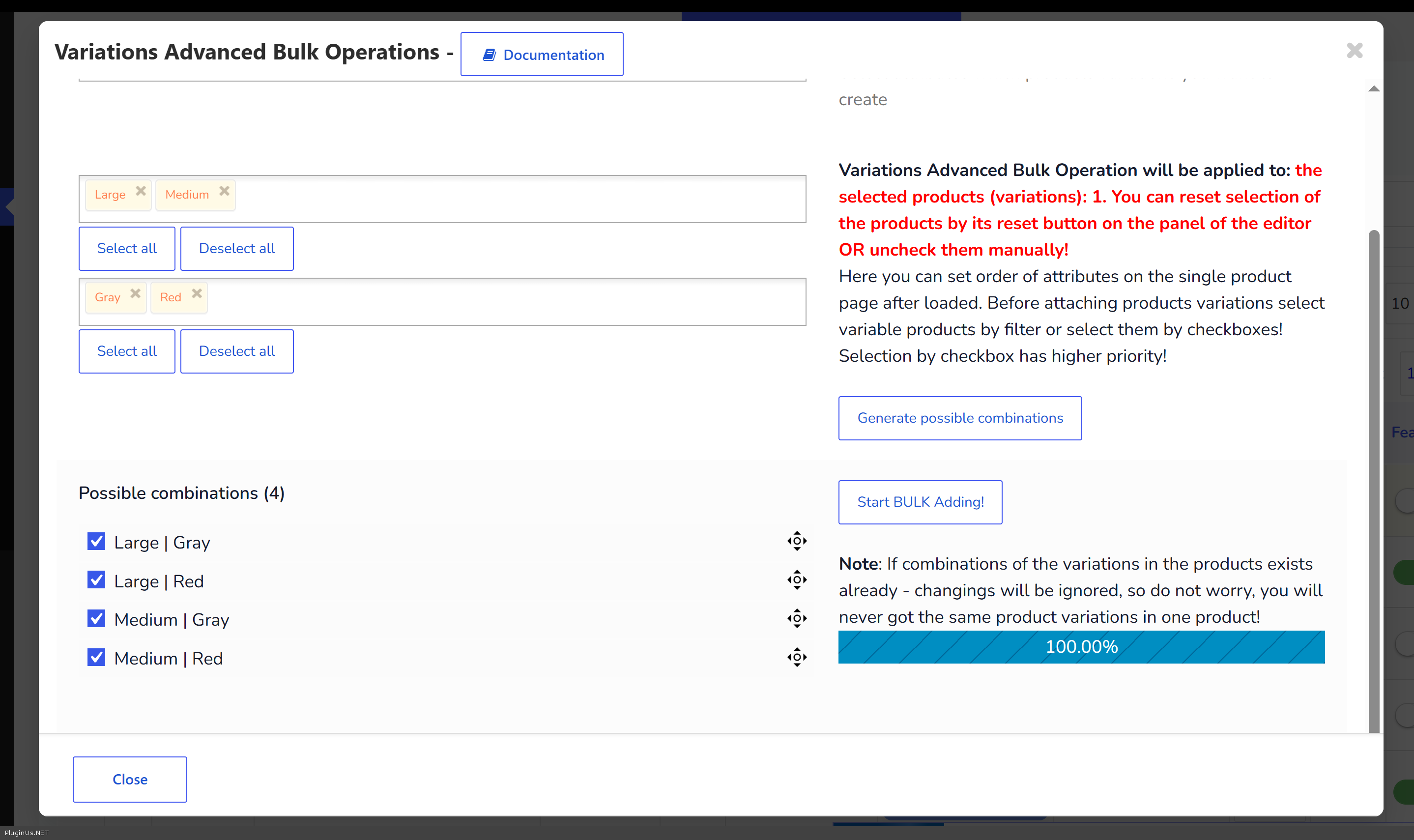
For reference, here is the exact all-in-BEAR flow that works on a clean setup. I just tested it here on the default Storefront theme and all variations displayed correctly on the front-end:
1. In BEAR, create or select the product and set Type to variable.
2. Select that product with its checkbox (checkbox selection has priority over the filter).
3. Open Variations Advanced Bulk Operations.
4. Pick the attribute values (for example Large/Medium and Gray/Red).
5. Click Generate possible combinations.
6. Keep the combinations you want checked and click Start BULK Adding, then wait for 100 percent.
7. Set prices for the variations.If you follow these exact steps and the variations still do not show on the front-end, the next thing to rule out is another plugin or a custom script hooking into the save process. The cleanest way to test that is on a staging copy of your site: temporarily switch to the Storefront theme and disable your other plugins, then re-test. If it works there, re-enable your plugins one by one until the one that interferes shows up.
Let me know the result of the Attributes/Variations check and how you originally created the products, and we will take it from there.
Hello Jonathan
Glad the first batch worked well! Let's sort out the second one.
One important point first: since your first approach worked on the same Lauriel theme and the same site, the theme itself is very unlikely to be the cause. The real difference between your working and non-working cases is how the parent product was set up, so that is where we should look.
Could you tell me how exactly you created those 2 products? Specifically, did you build them entirely inside BEAR (setting the type to variable and generating the variations there), or did you do it differently from the first batch that worked?
Before anything else, please open one of the two problem products in the standard WooCommerce product editor (wp-admin, not BEAR) and check two things:
1. Attributes tab: are the attributes present, and is"Used for variations" checked for them?
2. Variations tab: do the variations actually appear there, and do they have prices?
If the attributes or the"Used for variations" checkbox are missing on the parent product, that alone explains an empty front-end, even when the variation rows exist.
For reference, here is the exact all-in-BEAR flow that works on a clean setup. I just tested it here on the default Storefront theme and all variations displayed correctly on the front-end:
1. In BEAR, create or select the product and set Type to variable.
2. Select that product with its checkbox (checkbox selection has priority over the filter).
3. Open Variations Advanced Bulk Operations.
4. Pick the attribute values (for example Large/Medium and Gray/Red).
5. Click Generate possible combinations.
6. Keep the combinations you want checked and click Start BULK Adding, then wait for 100 percent.
7. Set prices for the variations.
If you follow these exact steps and the variations still do not show on the front-end, the next thing to rule out is another plugin or a custom script hooking into the save process. The cleanest way to test that is on a staging copy of your site: temporarily switch to the Storefront theme and disable your other plugins, then re-test. If it works there, re-enable your plugins one by one until the one that interferes shows up.
Let me know the result of the Attributes/Variations check and how you originally created the products, and we will take it from there.