
Bulk Edit with Formula?
The support doesn work on Saturdays and Sundays, so some Friday requests can be answered on Monday. If you have problems with registration ask help on contact us page pleaseIf you not got email within 24~36 business hours, firstly check your spam box, and if no any email from the support there - back to the forum and read answer here. DO NOT ANSWER ON EMAILS [noreply@pluginus.net] FROM THE FORUM!! Emails are just for your info, all answers should be published only here.
The support doesn work on Saturdays and Sundays, so some Friday requests can be answered on Monday.

Quote from Kevin on July 14, 2026, 08:08I want to do a bulk edit for the Woocommerce Field "Cost" (COGS). I want to do like you do for sales price and basically "decrease regular price by ___ %" For example if I retail and item at $100 and I get 70% margin, I want to be able to say either cost is "decrease regular price by 70%" or cost is 23% * regular price"
Can I do that somehow? I give up trying since I have been unable to figure it out.
Thanks in advance,
Kevin
I want to do a bulk edit for the Woocommerce Field"Cost" (COGS). I want to do like you do for sales price and basically"decrease regular price by ___ %" For example if I retail and item at $100 and I get 70% margin, I want to be able to say either cost is"decrease regular price by 70%" or cost is 23% * regular price"
Can I do that somehow? I give up trying since I have been unable to figure it out.
Thanks in advance,
Kevin

Quote from Alex Dev on July 14, 2026, 11:55Hello Kevin
Yes, this is possible right now, without any custom code. BEAR can already do math between two numeric fields, and that is exactly what you need: cost = regular price * 0.23.
Here is the step by step.
- Enable the native WooCommerce cost field Go to WooCommerce - Settings - Advanced - Features and enable "Cost of Goods Sold". After that a "Cost of goods" field appears in the product editor, in the General tab. WooCommerce stores this value in the product meta key _cogs_total_value. (wp-admin/admin.php?page=wc-settings&tab=advanced§ion=features -> Allows entering cost of goods sold information for products.)
If instead you use a third party cost plugin, the meta key will be different (for example _wc_cog_cost for the SkyVerge plugin). In that case simply use that key in the next step.
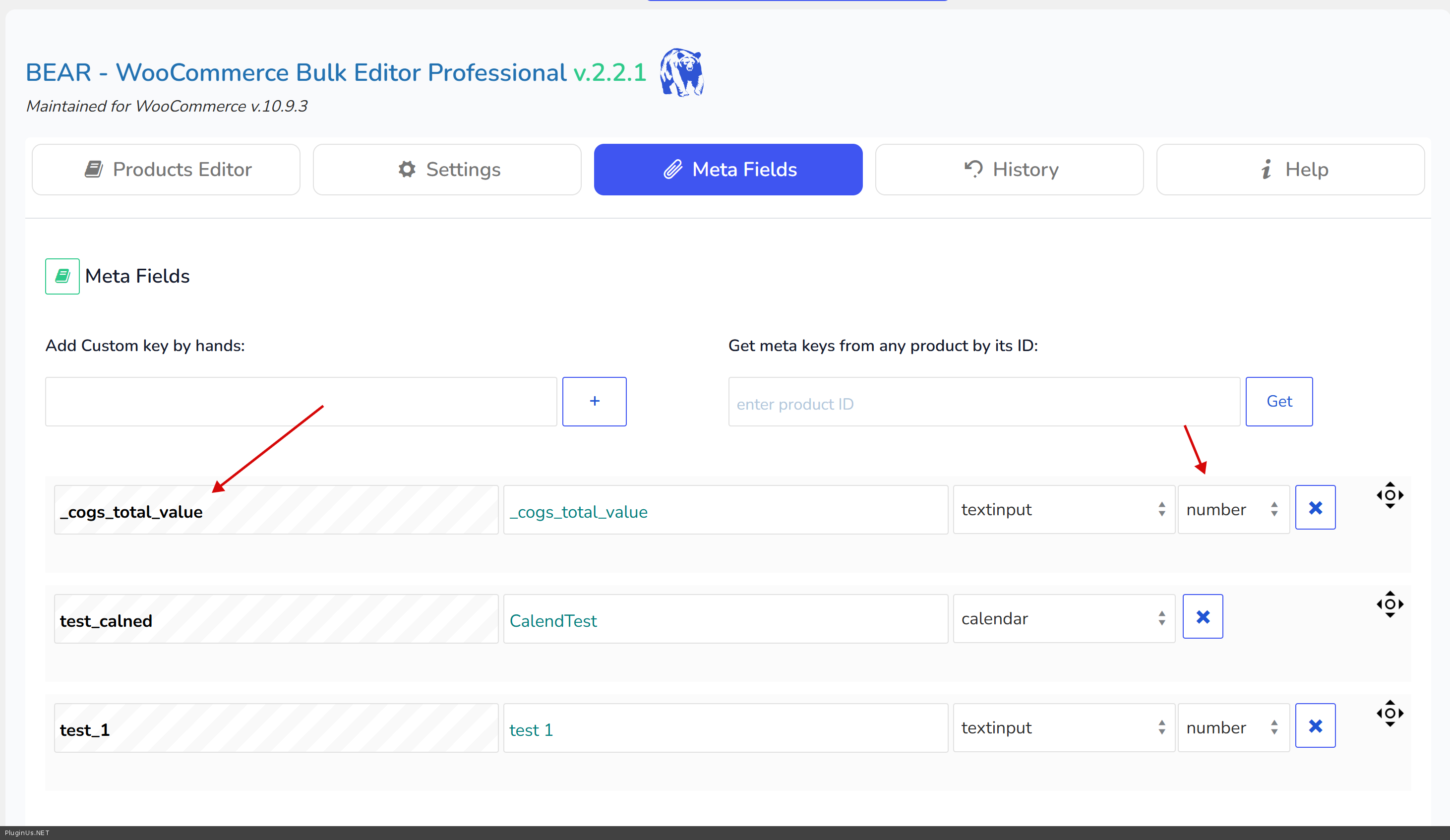
- Add the cost field to BEAR as a numeric meta field Go to the BEAR settings, the meta fields section, and add a new field: meta key: _cogs_total_value title: Cost type: number edit view: text input Save.
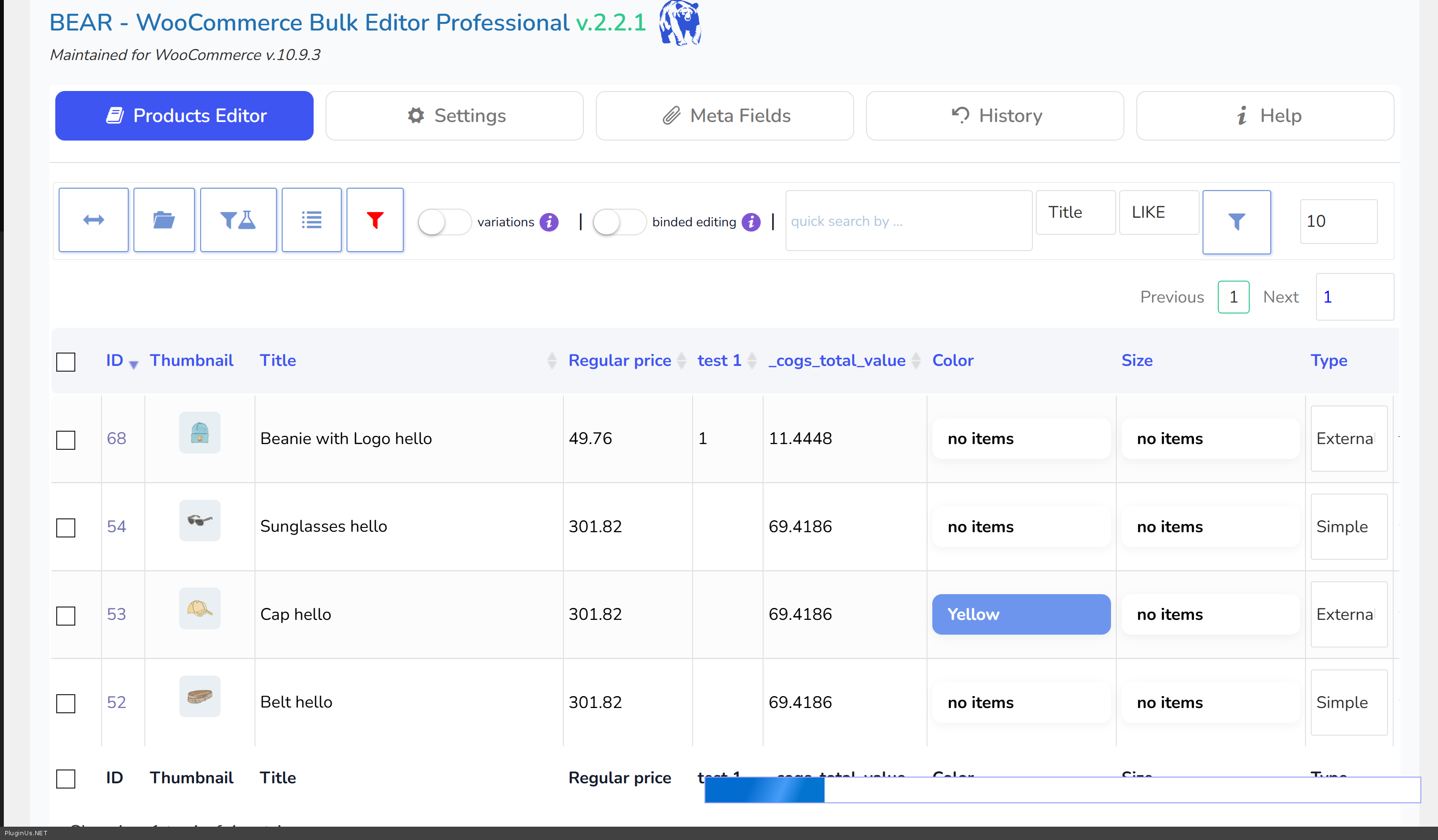
- Enable it as a column In the BEAR fields settings, turn the new Cost field on so it appears as a column in the products table. This step is required: a meta field is offered in the bulk editor only if it is enabled as a column.
- Select the products Filter or select the products you want to update, then open the Bulk Edit panel.
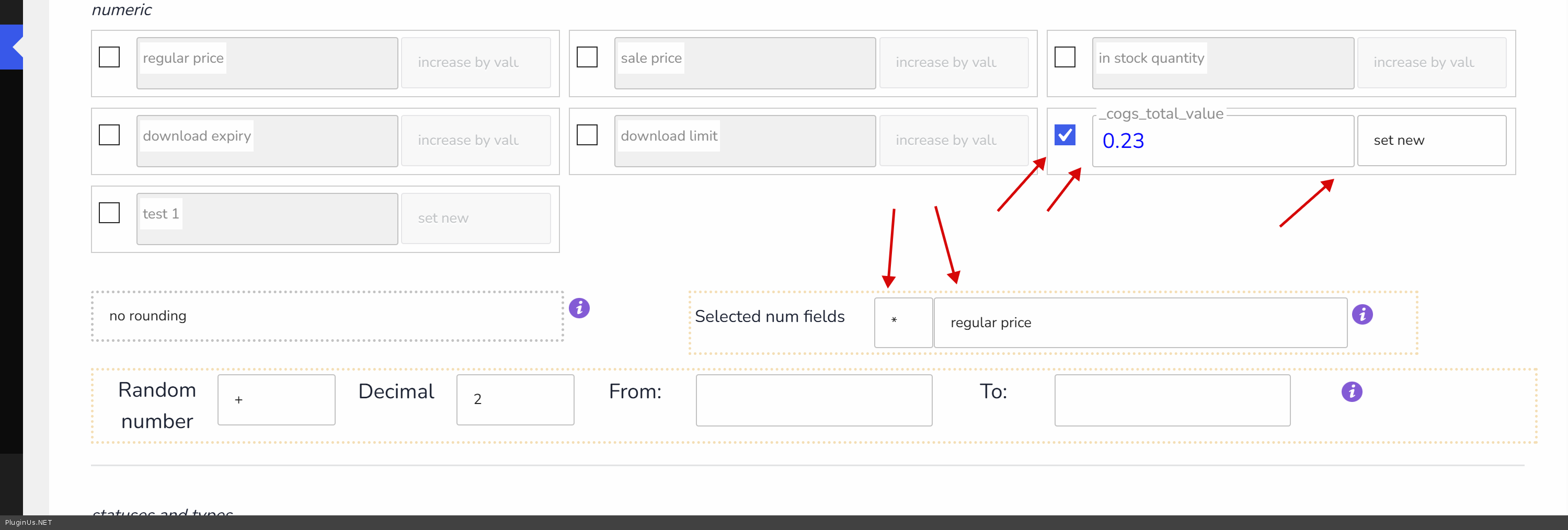
- Set the value In the "numeric" section of the bulk panel, tick the checkbox next to the Cost field only. Do not tick regular price, sale price or any other numeric field, because the formula in the next step is applied to every checked numeric field. Behavior: set new Value: 0.23
- Set the formula Below the numeric fields there is a block called "Selected num fields". Set the operator to * and choose "regular price" in the dropdown next to it. This tells BEAR to take the value you entered and multiply it by the regular price of each product.
- Optional rounding Next to the formula block there is a rounding dropdown. Choose the rounding you prefer, for example 2 decimals, so you do not get long fractions in the cost values.
- Apply the bulk edit.
Result: for every selected product the cost becomes 0.23 * regular price. A product with a regular price of 100 gets a cost of 23. If you want a 70 percent margin, use 0.3 instead of 0.23, which gives cost = 30 percent of the regular price.
The same formula block works with the other operators as well, so you can also build cost from the sale price, or divide, if you ever need it.
Please always run this on a staging copy or make a database backup first, since a bulk operation touches many products at once.
Hello Kevin
Yes, this is possible right now, without any custom code. BEAR can already do math between two numeric fields, and that is exactly what you need: cost = regular price * 0.23.
Here is the step by step.
- Enable the native WooCommerce cost field Go to WooCommerce - Settings - Advanced - Features and enable"Cost of Goods Sold". After that a"Cost of goods" field appears in the product editor, in the General tab. WooCommerce stores this value in the product meta key _cogs_total_value. (wp-admin/admin.php?page=wc-settings&tab=advanced§ion=features -> Allows entering cost of goods sold information for products.)
If instead you use a third party cost plugin, the meta key will be different (for example _wc_cog_cost for the SkyVerge plugin). In that case simply use that key in the next step.
- Add the cost field to BEAR as a numeric meta field Go to the BEAR settings, the meta fields section, and add a new field: meta key: _cogs_total_value title: Cost type: number edit view: text input Save.
- Enable it as a column In the BEAR fields settings, turn the new Cost field on so it appears as a column in the products table. This step is required: a meta field is offered in the bulk editor only if it is enabled as a column.
- Select the products Filter or select the products you want to update, then open the Bulk Edit panel.
- Set the value In the"numeric" section of the bulk panel, tick the checkbox next to the Cost field only. Do not tick regular price, sale price or any other numeric field, because the formula in the next step is applied to every checked numeric field. Behavior: set new Value: 0.23
- Set the formula Below the numeric fields there is a block called"Selected num fields". Set the operator to * and choose"regular price" in the dropdown next to it. This tells BEAR to take the value you entered and multiply it by the regular price of each product.
- Optional rounding Next to the formula block there is a rounding dropdown. Choose the rounding you prefer, for example 2 decimals, so you do not get long fractions in the cost values.
- Apply the bulk edit.
Result: for every selected product the cost becomes 0.23 * regular price. A product with a regular price of 100 gets a cost of 23. If you want a 70 percent margin, use 0.3 instead of 0.23, which gives cost = 30 percent of the regular price.
The same formula block works with the other operators as well, so you can also build cost from the sale price, or divide, if you ever need it.
Please always run this on a staging copy or make a database backup first, since a bulk operation touches many products at once.
Quote from Kevin on July 14, 2026, 14:12Thanks for the fast response! I was soo close but not quite there :)
How can I round to the nearest cent? I do not see that as an option. Can I do something like this:
add_filter('woobe_number_field_manipulation', function($value, $field_key, $product_id) {
$fields_to_round = array('_cogs_total_value');
if (in_array($field_key, $fields_to_round, true) && is_numeric($value)) {
return round(round((float) $value, 4), 2); }
return $value; },
10, 3);
Thanks for the fast response! I was soo close but not quite there :)
How can I round to the nearest cent? I do not see that as an option. Can I do something like this:
add_filter('woobe_number_field_manipulation', function($value, $field_key, $product_id) {
$fields_to_round = array('_cogs_total_value');
if (in_array($field_key, $fields_to_round, true) && is_numeric($value)) {
return round(round((float) $value, 4), 2); }
return $value; },
10, 3);
Quote from Kevin on July 15, 2026, 01:58One other question, why is one product displaying the product name and then the attributes (so I know what it is) and another is not? I can not seem to find any "oddities" between the two. They are both variable products, both only using global attributes, etc. The red squares in the screenshot show it did not list the attributes and the blue square shows it did. I have done all of these over the last 24hours.
You can access the image via my Google drive: https://drive.google.com/file/d/1Obf5KBN4CMk4hVUy8QG8CrqlJWdAQ9kl/
One other question, why is one product displaying the product name and then the attributes (so I know what it is) and another is not? I can not seem to find any"oddities" between the two. They are both variable products, both only using global attributes, etc. The red squares in the screenshot show it did not list the attributes and the blue square shows it did. I have done all of these over the last 24hours.
You can access the image via my Google drive: https://drive.google.com/file/d/1Obf5KBN4CMk4hVUy8QG8CrqlJWdAQ9kl/
Quote from Alex Dev on July 15, 2026, 22:33Hello Kevin
Two separate things here, let me cover both.
- Rounding the cost to the nearest cent
You are right that there is no ready option for this. The rounding dropdown next to the formula block only offers rounding to a whole number, up to the nearest 0.05 or 0.10, and the psychological endings (x.99, x.89 and so on). There is no "2 decimals" entry, so for a plain round to the cent you do need a small code snippet, exactly as you suspected.
The good news: your snippet is correct and will work as is. The filter woobe_number_field_manipulation exists, the signature (value, field_key, product_id) is right, and it fires for your Cost field because a meta field of type "number" is registered internally with a floatval sanitizer, which is the condition for that filter to run. Also important for your case: the formula (Cost = 0.23 * regular price) is applied before this filter, so your round() receives the already calculated cost, not the raw 0.23. That is exactly what you want.
Two small notes. The inner round to 4 decimals is redundant, a single round to 2 is enough. And keep the rounding dropdown on "no rounding" so the two mechanisms do not stack. So this is enough:
add_filter('woobe_number_field_manipulation', function ($value, $field_key, $product_id) {
   // Round the COGS value to 2 decimals (nearest cent).
   $fields_to_round = array('_cogs_total_value');
   if (in_array(field_key, $fields_to_round, true) AND is_numeric( value)) {
      return round((float) $value, 2);
   }
return $value;
}, 10, 3);
There is also a cleaner, plugin independent option, if you prefer. BEAR saves this field with the standard WordPress update_post_meta(), so you can round it with a native WordPress filter that runs before the value is written, from any source (BEAR bulk edit, the normal product editor, imports):
add_filter('sanitize_post_meta__cogs_total_value', function ($meta_value, $meta_key, $object_type) {
   // Keep empty or non numeric values untouched (cleared cost, parents with no cost).
   if (meta_value === '' || $meta_value === null || !is_numeric( meta_value)) {
      return $meta_value;
   }
   return round((float) $meta_value, 2);
}, 10, 3);
Note the double underscore in the hook name (sanitize_post_meta_ plus _cogs_total_value). The advantage is that your cost stays at 2 decimals everywhere, not only when you edit through BEAR. Either snippet is fine, pick the one that suits you. Please add it via a child theme functions.php or a small custom plugin.
- Why one product shows the size next to the name and another does not
This is not a bug and not something specific to your data, it is WooCommerce's own rule for naming variations, which BEAR follows. WooCommerce appends the attributes to a variation name unless one of these is true: the product has 10 or more attributes, or the product has two or more attributes and at least one attribute slug contains a hyphen. In that case WooCommerce drops the attribute list from the name to keep it from getting too long.
That is exactly the difference in your screenshot. The product that shows the size (the Maroon Floor Conditioning Pads, with the [pad-size] label) has a single attribute, so the hyphen in pad-size does not matter and the size is shown. The products that show only the plain name (the Mesh Screen Abrasive Sheets and the Mesh Sanding Screens) have two or more attributes, and at least one of those attribute slugs contains a hyphen, so WooCommerce hides the attribute list. You will see the same shortened name in the standard WooCommerce product list and in the cart, not only in BEAR.
To confirm it yourself, open Product data and then Attributes on a "good" product and a "bad" one. The good one will have one attribute, the bad one will have two or more with a hyphen in one of the slugs.
If you want the attributes to always be shown, including on those products, you can force it with this filter:
add_filter('woocommerce_product_variation_title_include_attributes', '__return_true');
One heads up: this is a WooCommerce wide filter, so it also affects variation names elsewhere (orders, cart, emails), not only inside BEAR. That is usually what people want, but I wanted you to know before you add it. The alternative would be renaming the attribute slug without a hyphen, but that is more invasive since it means reassigning terms, so I would go with the filter.
Please test any of these on a staging copy first.
Hello Kevin
Two separate things here, let me cover both.
- Rounding the cost to the nearest cent
You are right that there is no ready option for this. The rounding dropdown next to the formula block only offers rounding to a whole number, up to the nearest 0.05 or 0.10, and the psychological endings (x.99, x.89 and so on). There is no"2 decimals" entry, so for a plain round to the cent you do need a small code snippet, exactly as you suspected.
The good news: your snippet is correct and will work as is. The filter woobe_number_field_manipulation exists, the signature (value, field_key, product_id) is right, and it fires for your Cost field because a meta field of type"number" is registered internally with a floatval sanitizer, which is the condition for that filter to run. Also important for your case: the formula (Cost = 0.23 * regular price) is applied before this filter, so your round() receives the already calculated cost, not the raw 0.23. That is exactly what you want.
Two small notes. The inner round to 4 decimals is redundant, a single round to 2 is enough. And keep the rounding dropdown on"no rounding" so the two mechanisms do not stack. So this is enough:
add_filter('woobe_number_field_manipulation', function ($value, $field_key, $product_id) {
   // Round the COGS value to 2 decimals (nearest cent).
   $fields_to_round = array('_cogs_total_value');
   if (in_array(field_key, $fields_to_round, true) AND is_numeric( value)) {
      return round((float) $value, 2);
   }
return $value;
}, 10, 3);
There is also a cleaner, plugin independent option, if you prefer. BEAR saves this field with the standard WordPress update_post_meta(), so you can round it with a native WordPress filter that runs before the value is written, from any source (BEAR bulk edit, the normal product editor, imports):
add_filter('sanitize_post_meta__cogs_total_value', function ($meta_value, $meta_key, $object_type) {
   // Keep empty or non numeric values untouched (cleared cost, parents with no cost).
   if (meta_value === '' || $meta_value === null || !is_numeric( meta_value)) {
      return $meta_value;
   }
   return round((float) $meta_value, 2);
}, 10, 3);
Note the double underscore in the hook name (sanitize_post_meta_ plus _cogs_total_value). The advantage is that your cost stays at 2 decimals everywhere, not only when you edit through BEAR. Either snippet is fine, pick the one that suits you. Please add it via a child theme functions.php or a small custom plugin.
- Why one product shows the size next to the name and another does not
This is not a bug and not something specific to your data, it is WooCommerce's own rule for naming variations, which BEAR follows. WooCommerce appends the attributes to a variation name unless one of these is true: the product has 10 or more attributes, or the product has two or more attributes and at least one attribute slug contains a hyphen. In that case WooCommerce drops the attribute list from the name to keep it from getting too long.
That is exactly the difference in your screenshot. The product that shows the size (the Maroon Floor Conditioning Pads, with the [pad-size] label) has a single attribute, so the hyphen in pad-size does not matter and the size is shown. The products that show only the plain name (the Mesh Screen Abrasive Sheets and the Mesh Sanding Screens) have two or more attributes, and at least one of those attribute slugs contains a hyphen, so WooCommerce hides the attribute list. You will see the same shortened name in the standard WooCommerce product list and in the cart, not only in BEAR.
To confirm it yourself, open Product data and then Attributes on a"good" product and a"bad" one. The good one will have one attribute, the bad one will have two or more with a hyphen in one of the slugs.
If you want the attributes to always be shown, including on those products, you can force it with this filter:
add_filter('woocommerce_product_variation_title_include_attributes', '__return_true');
One heads up: this is a WooCommerce wide filter, so it also affects variation names elsewhere (orders, cart, emails), not only inside BEAR. That is usually what people want, but I wanted you to know before you add it. The alternative would be renaming the attribute slug without a hyphen, but that is more invasive since it means reassigning terms, so I would go with the filter.
Please test any of these on a staging copy first.
Quote from Kevin on July 15, 2026, 23:24Last question as I do not want the behavior that will come from the woo filter. I understand you are talking about the hyphen in the attribute slug. (not the terms & their slug attached to the attribute) If that is the case, can I just change the attribute slug and then relink the variations to the new slug? For Example pad-size becomes padsize. Is there a way to do the reassign in BEAR?
That should answer everything I have and put me in great shape.
The more I use BEAR the better it becomes :)
Last question as I do not want the behavior that will come from the woo filter. I understand you are talking about the hyphen in the attribute slug. (not the terms & their slug attached to the attribute) If that is the case, can I just change the attribute slug and then relink the variations to the new slug? For Example pad-size becomes padsize. Is there a way to do the reassign in BEAR?
That should answer everything I have and put me in great shape.
The more I use BEAR the better it becomes :)
Quote from Alex Dev on July 17, 2026, 15:28Hi Kevin,
Good question, and yes, you are thinking about it the right way. You do not need any manual SQL or a hard find and replace in the database. I see two clean ways to do this, and I will describe both so you can pick.
Before anything else, one rule that applies to BOTH methods: do this on a staging site first, never on production. Make a full database backup, create a clone or staging copy of your live site, run the steps there, confirm that the variations, the variation names and the product pages all look correct, and only then repeat it on the live site with a fresh backup in place. This touches taxonomy and variation data across many products at once, so testing on a clone is not optional.
Method 1: Reassign inside BEAR (the Swap operation)
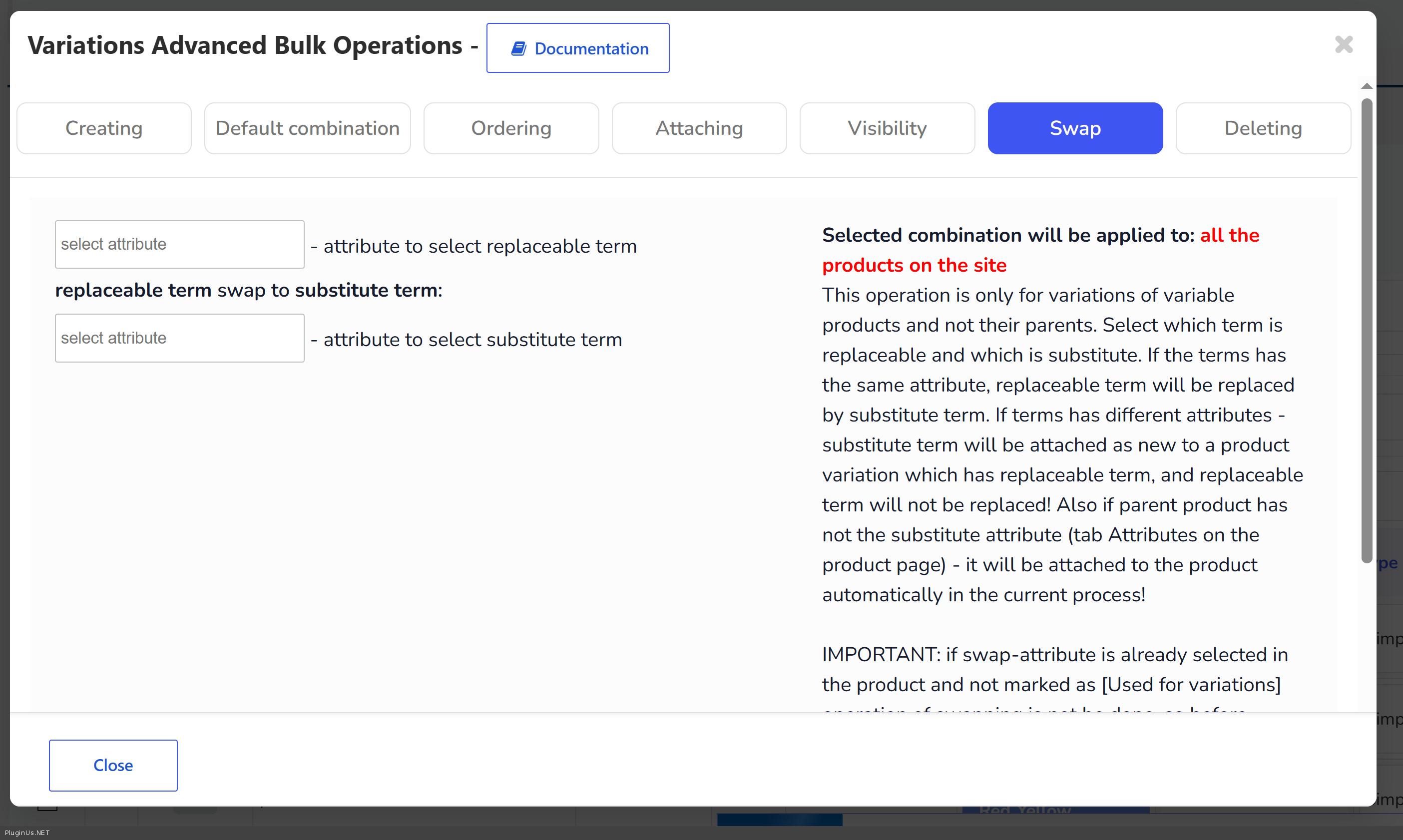
This is the "reassign in BEAR" you were asking about. BEAR has a Swap operation under Variations Advanced Bulk Operations that moves variations from one attribute/term to another.
The idea: you create a new hyphen free attribute, then swap variation from the old attribute onto the new one.
Steps:
- Create the new global attribute, for example padsize (no hyphen), under Products - Attributes. Add to it the same terms/values that pad-size currently has (the same sizes). BEAR can create terms too if that is faster.
- Very important, do not skip this: on each variable product that uses the old attribute, go to its Attributes tab, add the new padsize attribute, select its terms, and tick "Used for variations". Save. You must attach the new attribute to the parent products yourself before swapping. If you rely on Swap to attach it for you, it will not be flagged as used for variations, and your variations will break. So prepare the parent products first.
- Run the Swap operation once per term value: from pad-size / (a size) to padsize / (the same size). Repeat for each size value. Swap will move each matching variation onto the new attribute and remove the old one from it.
- When all terms are moved, remove the old pad-size attribute from those products, and delete the old attribute if you no longer need it.
- Regenerate the lookup table: WooCommerce - Status - Tools - Regenerate the product attributes lookup table. This keeps filtering and layered navigation correct.
Method 2: Rename the attribute slug natively (WooCommerce built in)
If your goal is simply to rename pad-size to padsize with the same terms, WooCommerce can do it in one action, and it handles the serialized data correctly by itself, which is exactly the part a plain find and replace would corrupt.
Steps:
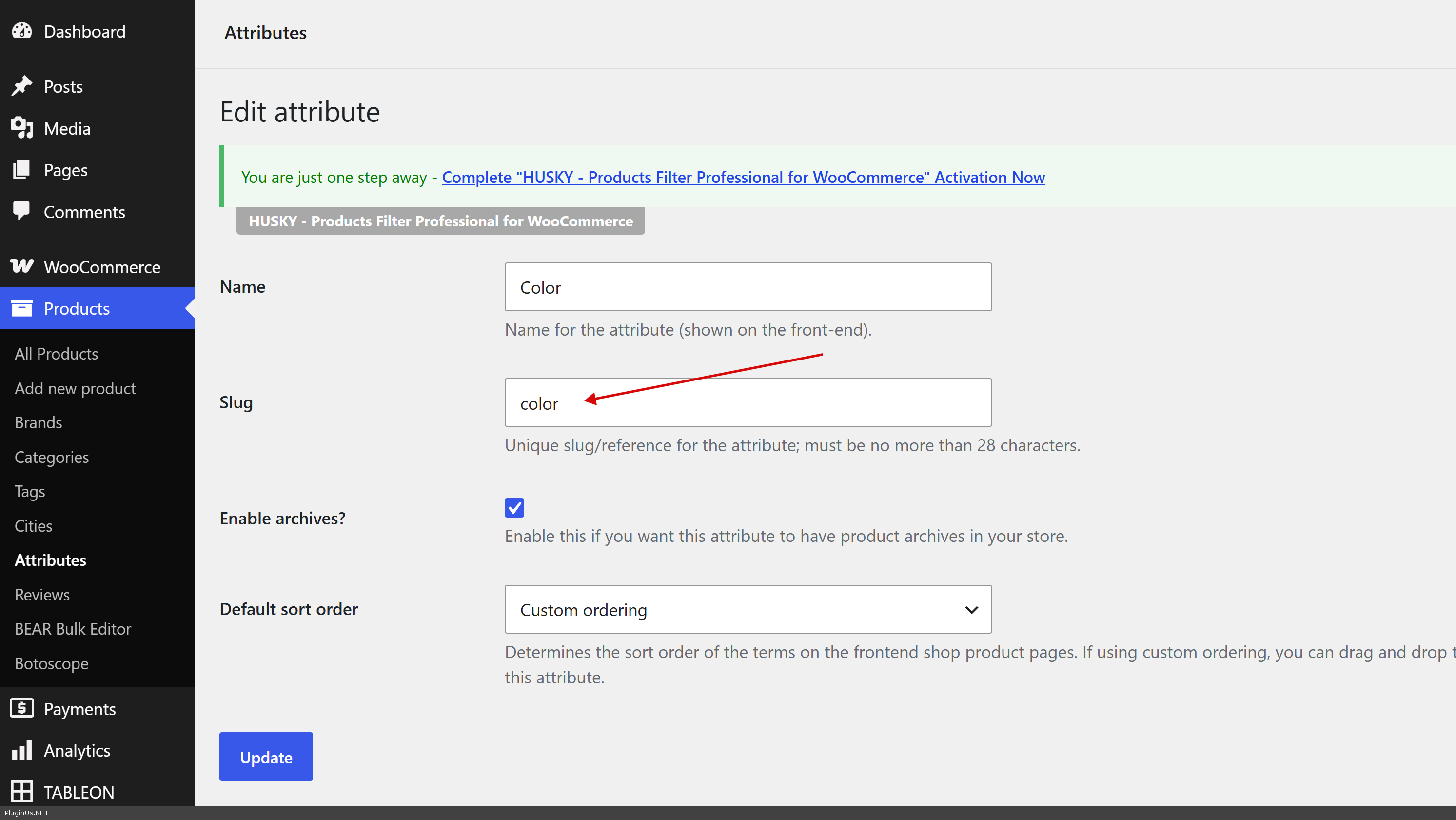
- Go to Products - Attributes and click Edit on the attribute.
- Change the Slug field from pad-size to padsize (no hyphen), and Update.
When the slug actually changes, WooCommerce automatically migrates the taxonomy record, the term links (your terms stay attached), the parent product attribute data (rewritten safely, including the serialized part), and the variation records, so no manual relinking is needed.
Two things WooCommerce does not do automatically after a native rename, so do them yourself:
- Regenerate the attributes lookup table (WooCommerce - Status - Tools), same as above.
- Re open and re save each affected variable product once, and if you use a default variation selection, set it again, since the default selection is not migrated.
Which one to choose
If you just want to rename the attribute and keep the same terms, Method 2 is fewer steps and lower risk, so I would start there.
If you prefer to stay inside BEAR, or you are actually restructuring attributes rather than just renaming, Method 1 (Swap) is the way, just remember to prepare the parent products first as described in step 2.One more reminder on the naming rule so you fix it in a single pass: the attributes get hidden from the variation name when a product has two or more attributes and any one of them has a hyphen in its slug, not only pad-size. So on those products, remove the hyphen from every attribute that has one, otherwise the name will still be shortened. Also note that for custom (non global) attributes, WooCommerce turns spaces in the attribute name into a hyphen automatically, so an attribute named for example Pad Size becomes pad-size on its own even if you never typed a hyphen.
Test all of this on the staging clone first, confirm everything looks right, and then do it on production with a backup. Let me know which method you go with and how the test goes, and I will help if anything looks off.
Hi Kevin,
Good question, and yes, you are thinking about it the right way. You do not need any manual SQL or a hard find and replace in the database. I see two clean ways to do this, and I will describe both so you can pick.
Before anything else, one rule that applies to BOTH methods: do this on a staging site first, never on production. Make a full database backup, create a clone or staging copy of your live site, run the steps there, confirm that the variations, the variation names and the product pages all look correct, and only then repeat it on the live site with a fresh backup in place. This touches taxonomy and variation data across many products at once, so testing on a clone is not optional.
Method 1: Reassign inside BEAR (the Swap operation)
This is the"reassign in BEAR" you were asking about. BEAR has a Swap operation under Variations Advanced Bulk Operations that moves variations from one attribute/term to another.
The idea: you create a new hyphen free attribute, then swap variation from the old attribute onto the new one.
Steps:
- Create the new global attribute, for example padsize (no hyphen), under Products - Attributes. Add to it the same terms/values that pad-size currently has (the same sizes). BEAR can create terms too if that is faster.
- Very important, do not skip this: on each variable product that uses the old attribute, go to its Attributes tab, add the new padsize attribute, select its terms, and tick"Used for variations". Save. You must attach the new attribute to the parent products yourself before swapping. If you rely on Swap to attach it for you, it will not be flagged as used for variations, and your variations will break. So prepare the parent products first.
- Run the Swap operation once per term value: from pad-size / (a size) to padsize / (the same size). Repeat for each size value. Swap will move each matching variation onto the new attribute and remove the old one from it.
- When all terms are moved, remove the old pad-size attribute from those products, and delete the old attribute if you no longer need it.
- Regenerate the lookup table: WooCommerce - Status - Tools - Regenerate the product attributes lookup table. This keeps filtering and layered navigation correct.
Method 2: Rename the attribute slug natively (WooCommerce built in)
If your goal is simply to rename pad-size to padsize with the same terms, WooCommerce can do it in one action, and it handles the serialized data correctly by itself, which is exactly the part a plain find and replace would corrupt.
Steps:
- Go to Products - Attributes and click Edit on the attribute.
- Change the Slug field from pad-size to padsize (no hyphen), and Update.
When the slug actually changes, WooCommerce automatically migrates the taxonomy record, the term links (your terms stay attached), the parent product attribute data (rewritten safely, including the serialized part), and the variation records, so no manual relinking is needed.
Two things WooCommerce does not do automatically after a native rename, so do them yourself:
- Regenerate the attributes lookup table (WooCommerce - Status - Tools), same as above.
- Re open and re save each affected variable product once, and if you use a default variation selection, set it again, since the default selection is not migrated.
Which one to choose
If you just want to rename the attribute and keep the same terms, Method 2 is fewer steps and lower risk, so I would start there.
If you prefer to stay inside BEAR, or you are actually restructuring attributes rather than just renaming, Method 1 (Swap) is the way, just remember to prepare the parent products first as described in step 2.
One more reminder on the naming rule so you fix it in a single pass: the attributes get hidden from the variation name when a product has two or more attributes and any one of them has a hyphen in its slug, not only pad-size. So on those products, remove the hyphen from every attribute that has one, otherwise the name will still be shortened. Also note that for custom (non global) attributes, WooCommerce turns spaces in the attribute name into a hyphen automatically, so an attribute named for example Pad Size becomes pad-size on its own even if you never typed a hyphen.
Test all of this on the staging clone first, confirm everything looks right, and then do it on production with a backup. Let me know which method you go with and how the test goes, and I will help if anything looks off.